QR code on a transparent background
The white tile goes, the quiet zone stays. Nothing is uploaded.
Drop files here
or click to choose from your deviceAccepted: JPG, JPEG, PNG, WEBP, AVIF, GIF, BMP, HEIC, HEIF
Up to 3 files per runUp to 20 MB per file5 runs per dayRemove limits with Pro✓ Works offline
Your files stay on your device
This tool runs entirely in your browser. Nothing is uploaded, nothing is stored, and you can even turn off your internet connection before you start.
Example
Example: a sign-up QR code on an orange school-fair poster, quiet zone kept
A school fair poster is printed on orange card and needs the QR code of the volunteer sign-up form. The code is saved as qr.png, 370 × 370 pixels: 29 × 29 near-black modules of 10 pixels on white, with 40 pixels of white around them, which is 4 modules. Settings: White or paper, Colour of what is kept Black, Crop to the content on.
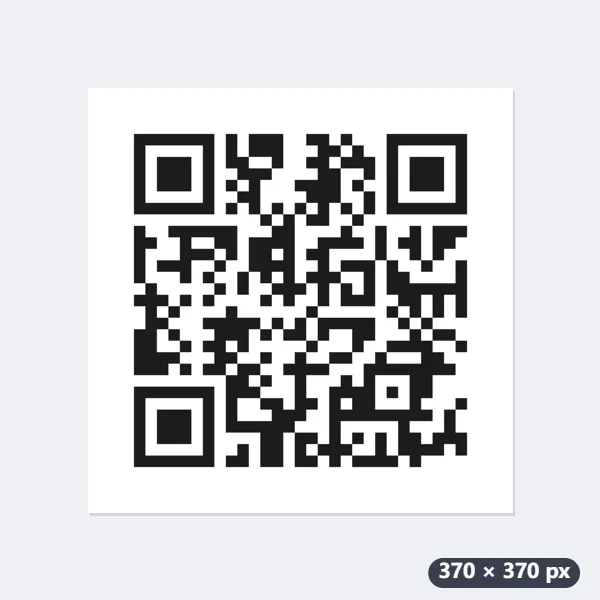
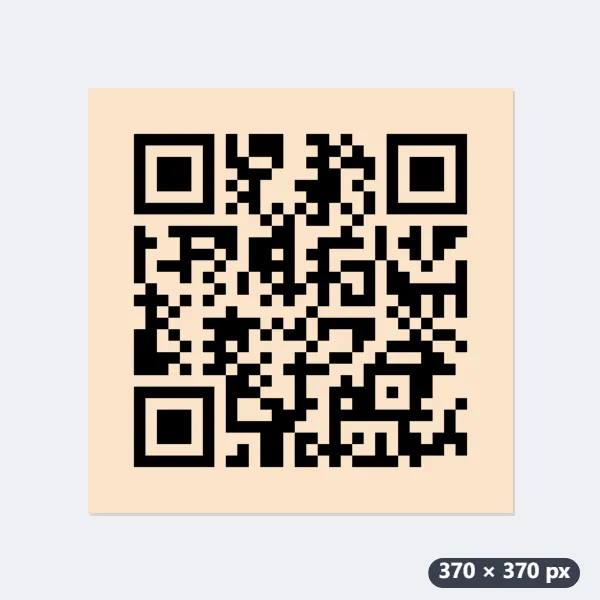
- The white becomes transparent and the modules become pure black, including those that were dark grey in the image.
- The crop recognises the three corner squares and stops at the quiet zone: 4 modules, 40 pixels, stay clear on each side, so the image is still 370 × 370.
- Download qr-transparent.png and place it on a light panel on the poster, not straight onto the dark orange.
| QR code with 10 px modules | White margin | After cropping |
|---|---|---|
| 370 × 370 | 40 px (4 modules) | 370 × 370, the margin stays |
| 490 × 490, a screenshot with lots of white | 100 px | 370 × 370: 60 px cut from each side |
| 314 × 314 | 12 px | 370 × 370: 28 px of transparent space added on each side |
| 290 × 290 | none | 370 × 370: 40 px added on each side |
qr-transparent.png: black modules with 4 modules of clear space all round, even when the original came with less. Before printing the poster, scan the code from the finished artwork with two or three different phones.
How it works
- Drop the QR code image. A screenshot or a scan of a printed one both work.
- The white becomes transparent and the black modules stay. Ink is set to black so a slightly grey scan comes out solid.
- Trimming is on, but it stops at the quiet zone rather than at the modules — see below for why that matters.
- Download the PNG and place it on your design. Then scan it from the finished artwork before printing anything.
Frequently asked questions
- What is the quiet zone and why keep it?
- The empty margin around a QR code is part of the code, not decoration. Readers use it to find where the code begins; the specification asks for four modules of clear space. Trimming tight to the black makes a code that looks right and fails on half the phones that try it, which is the worst kind of failure because you find out after printing.
- It is transparent, so what sits behind it?
- Whatever you put it on — and that is the risk. A QR code needs contrast between its dark modules and the space around them. On a dark or busy background the code disappears to a camera even though it looks fine to you. Place it on a light, plain area, or keep a light panel behind it.
- Can I invert it to a white code on dark?
- Some readers cope and some do not, so it is not something to do on a printed poster you cannot change. Test with several phones before committing. This tool keeps the code dark, which is the reliable direction.
- Will you read what the code says?
- No. This only changes pixels. If you want to know what a code contains, the QR reader does that — also in the browser, with no upload.
- My screenshot has a wide white border. Will it all stay?
- No, only what belongs to the code. The crop finds the three corner squares and keeps exactly four modules of clear space: a 490 × 490 screenshot of a code with 10-pixel modules and 100 pixels of white comes back 370 × 370, and one with only 12 pixels of margin gets transparent space added to reach the same 370 × 370.
- PNG or WebP?
- PNG works everywhere. WebP keeps the transparency in a smaller file; a browser that cannot write WebP, such as Safari, gives you the PNG instead.
- Is the image uploaded?
- No. It is processed in your browser and never leaves your device. The free plan handles 3 images per run, 20 MB each and 5 runs a day; Pro removes those limits.