Make line art transparent
Keep the lines, lose the paper: a transparent layer ready for colouring.
Drop files here
or click to choose from your deviceAccepted: JPG, JPEG, PNG, WEBP, AVIF, GIF, BMP, HEIC, HEIF
Up to 3 files per runUp to 20 MB per file5 runs per dayRemove limits with Pro✓ Works offline
Your files stay on your device
This tool runs entirely in your browser. Nothing is uploaded, nothing is stored, and you can even turn off your internet connection before you start.
Example
Example: an inked cat drawing with pencil underneath, scanned at 300 dpi
cat.png, an A4 scan at 300 dpi (2480 × 3508 px): a sitting cat inked in black fineliner over a light pencil sketch, on paper that scans light grey (245 out of 255). Settings as the page opens: strength 3, original colours kept, no crop, PNG.
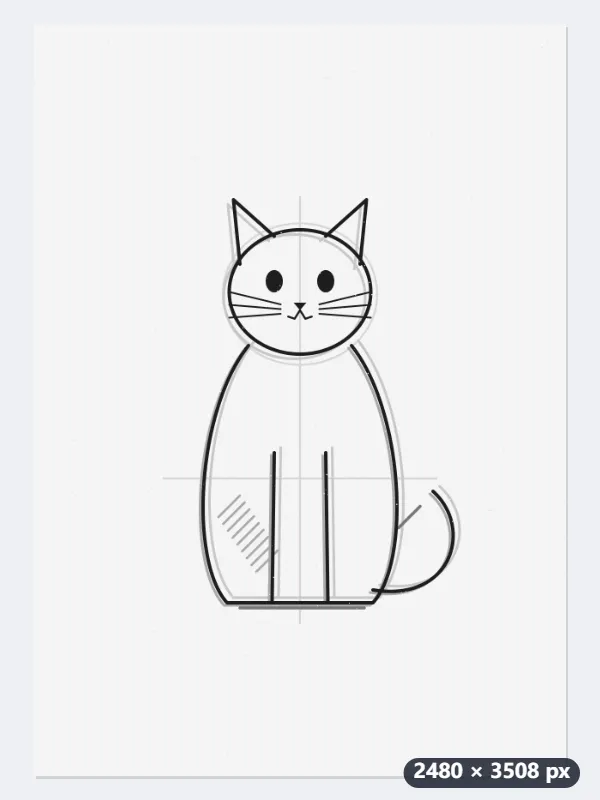
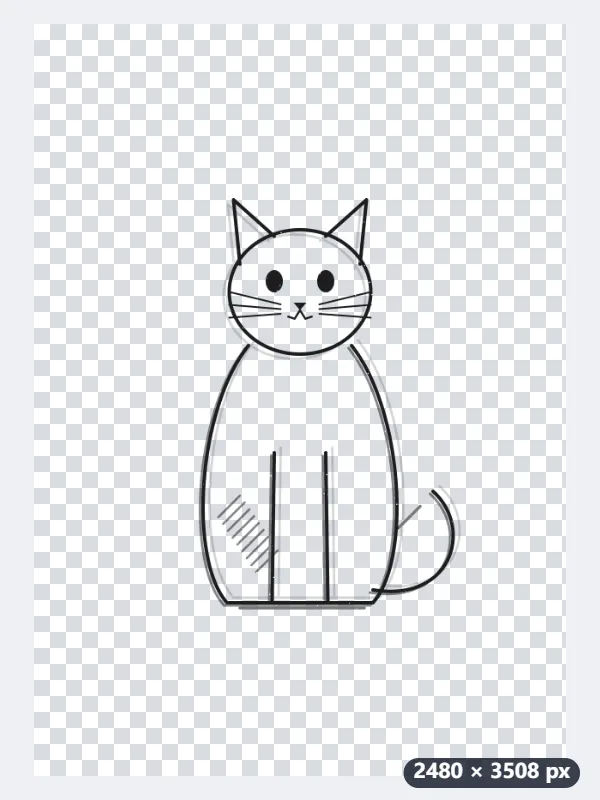
- The paper colour is measured across the scan, and every mark is judged by how much darker than the paper it is.
- At strength 3, marks less than 11% darker than the paper disappear and marks more than 51% darker stay solid; those in between keep part of their opacity.
- Press Make line art transparent and download cat-transparent.png, still 2480 × 3508.
| Mark (grey value, paper 245) | Kept at strength 3 | At 5 | At 6 |
|---|---|---|---|
| Black ink (30) | 100% | 100% | 100% |
| Dark pencil (120) | 100% | 85% | 78% |
| Mid pencil (170) | 49% | 34% | 27% |
| Light pencil (200) | 18% | 4% | gone |
| Faint line (215) | 3% | gone | gone |
| Paper grain (228) | gone | gone | gone |
The ink lines stay solid, the pencil survives as soft transparent grey, and no white is left anywhere. Import it as a layer and colour underneath; to lose the lightest pencil, run it again at strength 6.
How it works
- Scan your drawing, or photograph it from straight above in even light.
- Drop the image onto the box. The clean-up strength starts low so faint lines survive.
- Press Make line art transparent. Raise the strength if paper texture remains, or lower it if lines break up.
- Download the PNG and import it into your painting app as a new layer.
Frequently asked questions
- How do I use it in Procreate, Clip Studio Paint or ibisPaint?
- Import the PNG as an image and use it as the line art layer. The background is already transparent, so you can add a layer underneath and start colouring without any line extraction in the app.
- Can I make all lines black?
- Yes. Set Colour of what is kept to Black and grey pencil or blue pen becomes black. Pressure differences stay as transparency, so the lines keep their weight.
- What happens to coloured areas?
- Coloured areas are kept, minus the white of the paper mixed into them, so pale watercolour washes come out lighter. For the cleanest result, make the line art transparent before colouring.
- What does the strength number do?
- It sets how much darker than the paper a mark must be to stay. At 3, where this page starts, anything under 11% darker vanishes and anything over 51% darker is fully solid; each step up raises both by 3 points, so at 6 it is 20% and 60%. Raise it for grainy paper, lower it if faint lines break up.
- Can I crop it to the drawing?
- Tick “Crop to the content”: the picture is cut to the smallest box around the lines plus a margin of 2% of that box’s longer side, and “Space around the content” adds as many pixels as you want on top.
- Is my drawing uploaded?
- No. It is processed in your browser and never leaves your device. The free plan handles 3 images per run, 20 MB each and 5 runs per day.