Photo to line drawing
Flat areas go white and only the lines stay — as pencil or as clean ink.
Drop files here
or click to choose from your deviceAccepted: JPG, JPEG, PNG, WEBP, AVIF, GIF, BMP, HEIC, HEIF
Up to 3 files per runUp to 20 MB per file5 runs per dayRemove limits with Pro✓ Works offline
Your files stay on your device
This tool runs entirely in your browser. Nothing is uploaded, nothing is stored, and you can even turn off your internet connection before you start.
Example
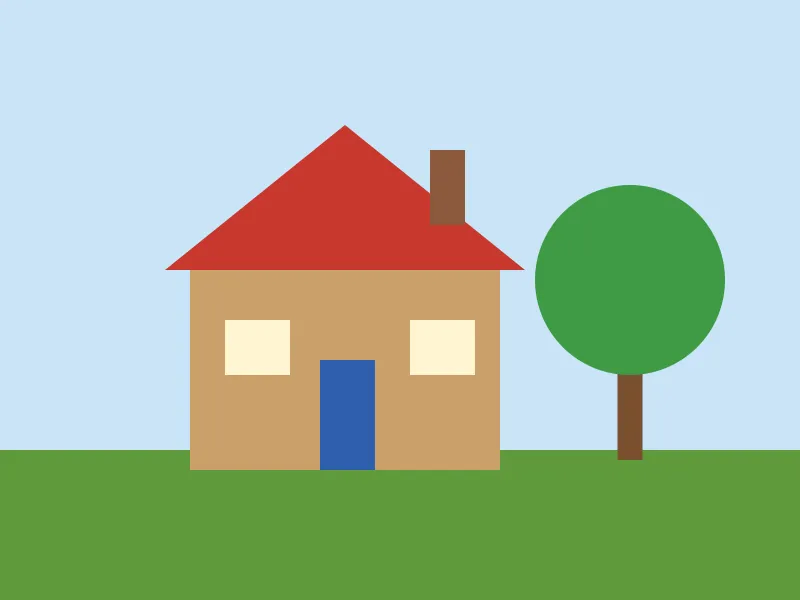
Example: a flat-colour drawing of a cottage turned into black line art
cottage.png, 1600 × 1200 px: a cottage with a red roof, a blue door and two windows, a round green tree beside it, under a pale blue sky. Flat colours with clear edges. Settings: Lines Medium, Style Ink, Detail 5, Line colour Black, Background White, PNG image.
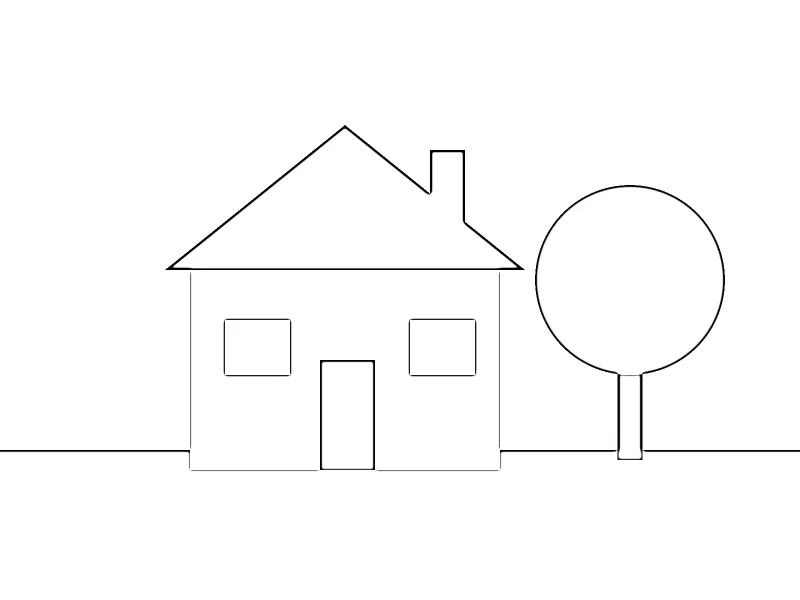
- The picture is turned grey and divided by a blurred copy of its own negative. The blur is the Lines setting scaled to the picture: Medium is 2 px per 1,000 px of the longer side, so 3 px here.
- Flat areas, the sky, the red roof, the green tree, come out white; where one colour meets another a line remains.
- Ink turns those lines into clean black on white. Download cottage-lineart.png, still 1600 × 1200.
| Lines | Blur on 1600 × 1200 | On a 4000 × 3000 photo |
|---|---|---|
| Fine | 2 px | 4 px |
| Medium | 3 px | 8 px |
| Bold | 6 px | 16 px |
Black outlines of the roof, walls, door, windows and tree on white: the colours gone, the shapes kept, ready to print and colour in.
How it works
- Drop a picture onto the box: an illustration, a character sheet or a photo.
- Choose how fine the lines are, and pencil for a sketch or ink for clean black lines.
- Choose a transparent background to get lines only, ready to colour on a layer underneath.
- Select Extract lines and download the PNG.
Frequently asked questions
- What kind of pictures work best?
- Illustrations with clear outlines and flat colours: the fills disappear and the outlines stay, close to the original line art. Photos turn into a pencil-sketch look; busy backgrounds such as leaves or crowds become a lot of small marks, so a subject on a plain background works best.
- How does it find the lines?
- It divides the picture by a blurred copy of its own negative — the "colour dodge" method artists use in editing programs. Where the picture is flat the result is white; where brightness changes it stays dark. The Lines setting is the size of that blur.
- Can I colour the result?
- Yes. Choose the transparent background: you get black lines on a transparent PNG, to put on a layer above your colours in any painting program.
- What do Fine, Medium and Bold change?
- The size of the blur the lines are found with, scaled to the picture: 1, 2 or 4 px per 1,000 px of the longer side, never less than for a 1,000 px picture. On a 1600 × 1200 drawing that is 2, 3 and 6 px; on a 4000 × 3000 photo 4, 8 and 16 px. A larger blur gives thicker lines.
- Can I print it as a colouring page?
- Yes: set Save as to Coloring page PDF (A4) or (US Letter). The drawing goes on one page, turned to suit it and as large as the margins allow, and the file is named after the picture, cottage-coloring-page.pdf.
- Is my picture uploaded, and what are the free limits?
- It is not uploaded: the picture is changed in your browser. The free plan allows 3 pictures of up to 20 MB per run and 5 runs a day. Pro removes these limits.