Straighten and clean up a scan
A crooked photo of a page comes back level, cropped to the paper and readable.
Drop files here
or click to choose from your deviceAccepted: JPG, JPEG, PNG, WEBP, AVIF, GIF, BMP, HEIC, HEIF
Up to 3 files per runUp to 20 MB per file5 runs per dayRemove limits with Pro✓ Works offline
Your files stay on your device
This tool runs entirely in your browser. Nothing is uploaded, nothing is stored, and you can even turn off your internet connection before you start.
Example
A signed permission slip photographed on the kitchen table, made level and black and white
A school field-trip permission slip, one US Letter page, signed and photographed on a wooden kitchen table in the evening: slip.jpg, 3024 × 4032 pixels. The lines of text slope down 2.5° to the right, a band of table shows around the page, and the phone’s shadow darkens the lower half. Settings: Straighten the page on, Crop to the paper on, Finish Black and white, Output format PNG.
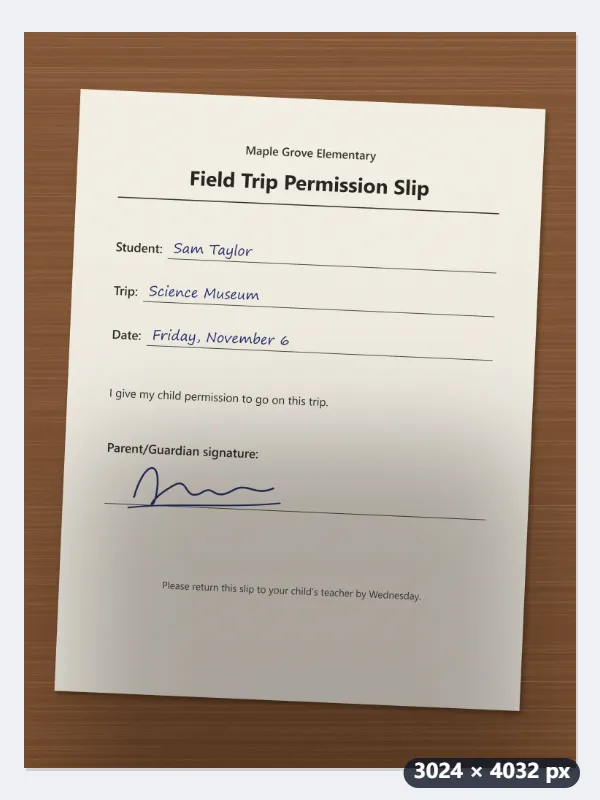
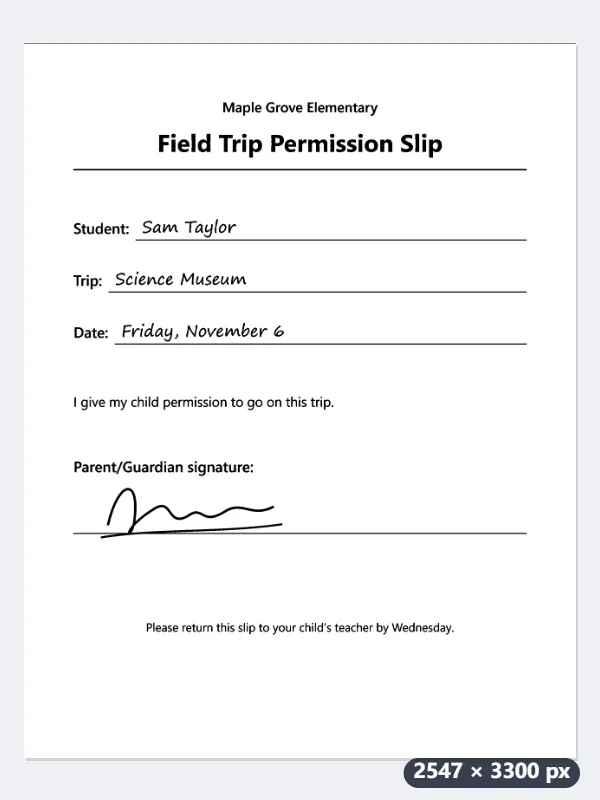
- The tilt is measured on the page itself, away from the table: 2.5°. The photo is turned back by that much and grows to 3197 × 4161 pixels to keep its corners; the new corners are white.
- The edge of the bright paper is found again after the turn, and the band of table is cut away.
- Black and white compares each pixel with the average brightness of a square around it about a thirtieth of the page’s width across, so the text stays black and the paper white in the shadow too.
slip-scan.png: the page level, without the table, black text on white paper from top to bottom, signature included. Nothing is enlarged: the page is only turned, cropped and cleaned, ready to email back to the school or to put into a PDF with JPG to PDF.
How it works
- Drop the scans or photos of documents. Several can be cleaned in one run, each measured on its own.
- Leave Straighten the page on to have the tilt found and corrected. The tool reads the rows of text: it tries every angle up to 10 degrees either way and keeps the one where the lines come out sharpest, to a tenth of a degree.
- Leave Crop to the paper on if the photo shows the desk around the page. A scan that is already trimmed is left at its full size.
- Choose the finish. Greyscale is the usual one for text. Black and white decides each pixel against the brightness around it, which keeps a page lit from one side readable and makes much smaller files. Keep colours suits a form with coloured stamps or a highlighted passage.
- Press Clean up scan and download. Files keep their name with -scan added.
Frequently asked questions
- How does it know which way the page is tilted?
- From the text itself. Lines of text pile ink into rows, and those rows only line up at one angle, so the tool shears the page through every angle in the range and keeps the one that makes the rows sharpest. It needs text to work: a photo of a drawing or a blank page has no rows to read, and is left exactly as it is rather than turned by a guess.
- Will it fix a page photographed at an angle?
- Only the rotation, not the perspective. If you shot the page from above but held the phone crooked, this straightens it. If you shot it from the side, so the page is a trapezoid rather than a rectangle, that needs corner-by-corner correction, which this tool does not do; retake the photo from directly above.
- Why did it not crop my scan?
- Because it found no darker border to crop away. Cropping looks for where the bright paper starts and stops, so it works on a photo of a page on a desk. A flatbed scan that is already all paper has nothing to remove, and a page photographed on a white table has no edge to find.
- Does it work on receipts?
- Yes, as long as the receipt has rows of printed text and lies on something darker than the paper: the tilt is read from the rows and the crop from the bright edge. Black and white usually makes faded print easier to read. A receipt curled so much that its lines bend is turned to the angle of its lines on average; the bend stays.
- Which finish should I use before OCR?
- Greyscale or black and white, both of which make text stand out from the paper. Black and white also shrinks the file a lot, which helps if the scan goes into a PDF afterwards. Read text from an image handles the reading itself, in the browser, with no upload.
- Can it clean a PDF scan?
- For the tilt, yes — Straighten a PDF does it on the PDF itself, so the scan keeps its resolution and any real text stays selectable. This tool only takes pictures, so for cropping and cleaning up a PDF scan you still turn it into images with PDF to JPG, clean them here and put them back with JPG to PDF.
- Does it upload my documents, and what are the free limits?
- No. Everything is measured and redrawn in your browser, which matters for contracts, invoices and ID documents, and there is no model to download either: the whole thing is arithmetic on the picture. The free plan handles 3 images per run, 20 MB each and 5 runs per day; Pro removes these limits.