Convert an image to black and white
Grayscale for photos, crisp black and white for scans and signatures, sepia for an old look.
Drop files here
or click to choose from your deviceAccepted: JPG, JPEG, PNG, WEBP, AVIF, GIF, BMP, HEIC, HEIF
Up to 3 files per runUp to 20 MB per file5 runs per dayRemove limits with Pro✓ Works offline
Your files stay on your device
This tool runs entirely in your browser. Nothing is uploaded, nothing is stored, and you can even turn off your internet connection before you start.
Example
Example: a signed and stamped letter, photographed at night, made pure black and white
The last page of a signed letter, photographed on a phone under a desk lamp: letter.jpg, 3024 × 4032 pixels. The paper looks yellowish, the phone’s shadow falls on the bottom-left corner, the signature is in dark blue ballpoint and a round red stamp sits beside it. The letting agent wants a copy that looks like a scan.
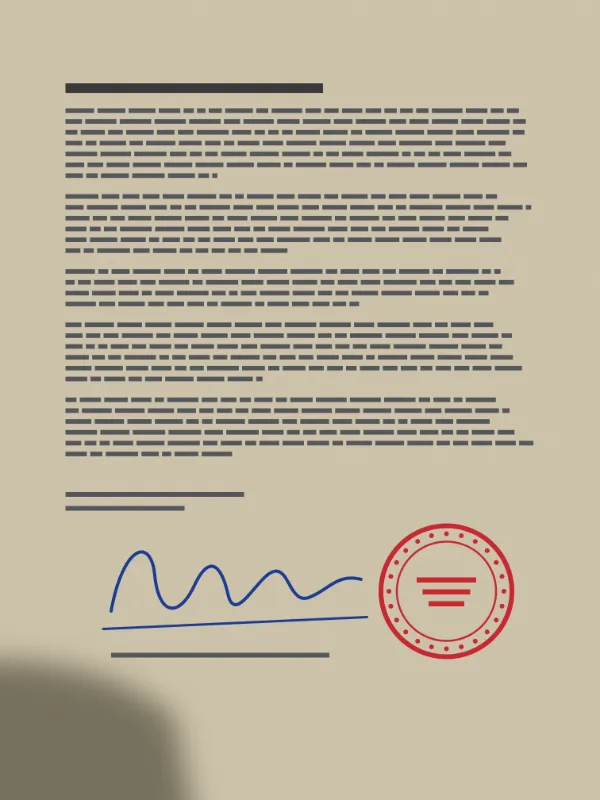
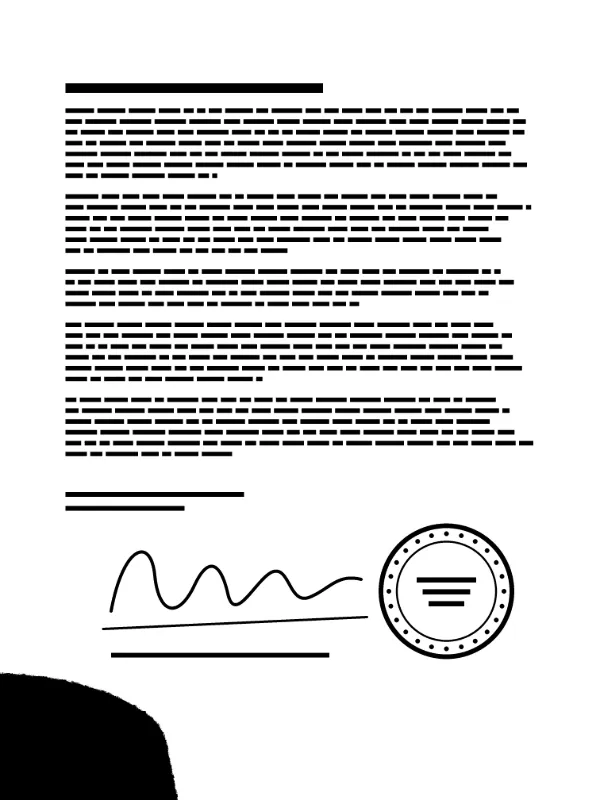
- Drop the photo, choose Pure black and white (high contrast) and leave Output format on Keep original format.
- Each pixel’s brightness is worked out as red × 0.299 + green × 0.587 + blue × 0.114. From 128 up it becomes white, below 128 black; the threshold is fixed.
- Press Convert images: letter-bw.jpg downloads, still 3024 × 4032 pixels.
- Grayscale keeps that same brightness as a shade of grey; Sepia turns the pixel into warm browns; Invert colours turns each value into 255 minus itself.
| Colour in the photo (R, G, B) | Grayscale | Pure black and white | Sepia |
|---|---|---|---|
| Printed text (35, 35, 40) | 36 | black | (48, 43, 33) |
| Dark blue ballpoint (30, 60, 150) | 61 | black | (86, 77, 60) |
| Paper under the lamp (205, 195, 170) | 195 | white | (255, 234, 182) |
| Shadow on the paper (120, 112, 95) | 112 | black | (151, 135, 105) |
| Red stamp (200, 40, 50) | 89 | black | (119, 106, 82) |
| If signed in light blue (90, 140, 220) | 134 | white | (185, 164, 128) |
The text, the signature and the stamp come out solid black on white, like a scan. But the shadowed corner becomes a black patch, and a signature in light blue ink would turn white and vanish. Photograph the page in even light or crop the shadow off first; for light ink, choose Grayscale instead.
How it works
- Drop the images to convert.
- Choose Grayscale for photos, Pure black and white for scans, signatures and stamps, Sepia for a vintage tone, or Invert colours.
- Press Convert images.
- Download the results one by one or as a ZIP.
Frequently asked questions
- What is the difference between grayscale and black and white?
- Grayscale keeps every shade of grey, which suits photos. Pure black and white turns every pixel either black or white, which makes scanned text, signatures and stamps crisp; saved as PNG, a page like that also makes a small file.
- When should I use pure black and white?
- For a photographed document or a signature that should look like a clean scan: grey paper becomes white and the writing becomes solid black.
- Can I get the colours back later?
- No, the colour information is removed from the saved copy. Your original file is not changed.
- Can I change where black turns into white?
- No. The threshold is fixed at a brightness of 128 out of 255, worked out as red × 0.299 + green × 0.587 + blue × 0.114. Anything lighter becomes white, so light blue ink (brightness 134) and yellow highlighter (about 217) disappear. For those, Grayscale keeps every shade.
- What does Invert colours do?
- It turns each colour value into 255 minus itself: white paper becomes black, black text white, and dark blue ink (30, 60, 150) becomes a sandy (225, 195, 105), like a photographic negative. Inverting the result again gives the original colours back.
- Are my images uploaded?
- No. The conversion runs in your browser. The free plan handles 3 images per run, 20 MB each and 5 runs per day.