Photo to cartoon
Flat colours and ink lines, from any photo.
Drop files here
or click to choose from your deviceAccepted: JPG, JPEG, PNG, WEBP, AVIF, GIF, BMP, HEIC, HEIF
Up to 3 files per runUp to 20 MB per file5 runs per dayRemove limits with Pro✓ Works offline
Your files stay on your device
This tool runs entirely in your browser. Nothing is uploaded, nothing is stored, and you can even turn off your internet connection before you start.
Example
Example: a sleeping cat turned into a birthday-card cartoon, 6 colours and bold lines
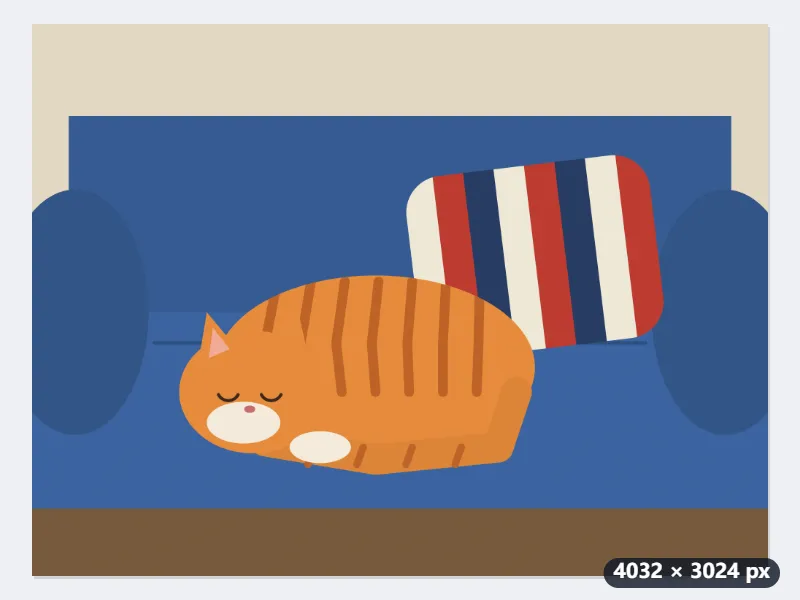
biscuit.jpg is a 4032 × 3024 phone photo of a ginger cat asleep on a blue sofa, a striped cushion behind it. It will go on a birthday card, so the cartoon should be bold and simple. Settings: Colours 6, Lines Bold, Smoothing Strong (flatter shapes), Save as The same format.
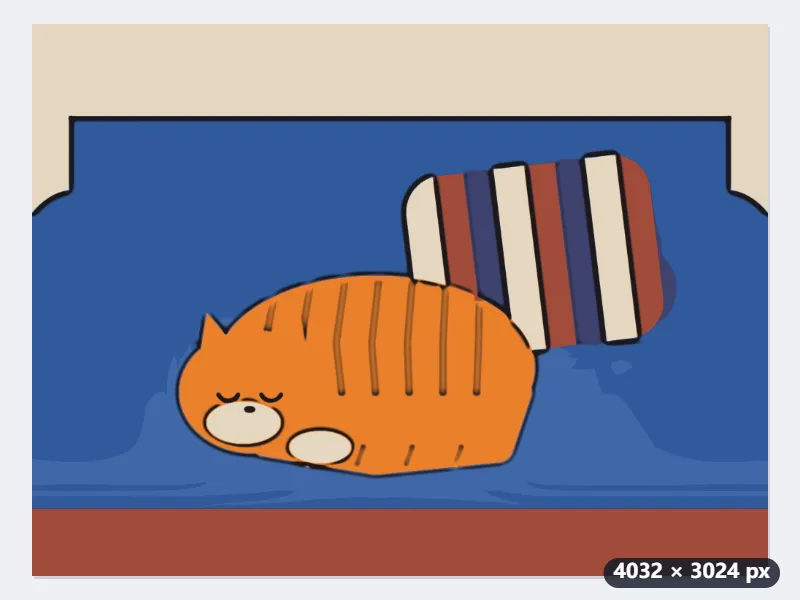
- The smoothing runs on a 1414 × 1061 copy (1.5 megapixels), so a 12 MP photo takes seconds, not minutes. Strong smoothing reaches about 121 pixels of the photo, twice over, and stops at edges.
- The colours are cut to 6, picked from the photo itself and made a little brighter, then laid over the picture at its full 4032 × 3024.
- Bold ink lines go where the brightness steps from one shape to the next: round the cat, its ears and the cushion. Fine texture such as the sofa fabric draws no line.
| Smoothing | Reach on this photo | Passes |
|---|---|---|
| Light (keeps more detail) | about 40 px | 1 |
| Medium | about 73 px | 2 |
| Strong (flatter shapes) | about 121 px | 2 |
biscuit-cartoon.jpg, still 4032 × 3024 pixels: about 34 × 26 cm at 300 dpi, plenty for a 4 × 6 in card. The same photo with the same settings gives the same cartoon every time, so you can run it again with 8 colours and compare the two.
How it works
- Add one or more photos: a portrait, a pet or a landscape.
- Choose how many colours and how bold the lines are; stronger smoothing gives flatter, simpler shapes.
- Select Cartoonize and download the picture.
Frequently asked questions
- How is the cartoon made?
- In three steps. The photo is smoothed in a way that stops at edges, so skin, sky and clothes become even areas while their outlines stay sharp. Its colours are then reduced to the number you choose, a little brighter than the photo, as cartoons are. Finally, dark ink lines are drawn where the brightness steps from one shape to the next, so grain and noise draw nothing.
- How many colours should I choose?
- Four or six give a bold, poster-like cartoon; eight is a good balance for portraits; twelve keeps more of the shading. A small area with a colour of its own, such as a badge or a face, still gets its own colour rather than another shade of the sky.
- Does it keep the size and transparency?
- Yes. The cartoon has the photo’s size (up to 16 megapixels), and a transparent background stays transparent in PNG and WebP. A JPG puts transparent areas on white.
- Is this an AI cartoon filter?
- No. It is three classic image filters, edge-preserving smoothing, colour reduction and ink lines, with no trained model. Faces are simplified, not redrawn or reshaped, and the same photo with the same settings always gives the same cartoon.
- Can I use a HEIC photo from an iPhone?
- Yes. HEIC and HEIF photos are read in the browser, and with Save as The same format the cartoon comes back as a JPG, which every app opens. A GIF or BMP comes back as a PNG; JPG, PNG and WebP keep their format.
- Is my photo uploaded, and what are the free limits?
- No. The cartoon is made in your browser, so the photo never leaves your device, and there is no watermark. The free plan allows 3 photos of up to 20 MB per run and 5 runs a day; Pro removes these limits.