Photo to oil painting
Dabs of paint and brush strokes, from a photo.
Drop files here
or click to choose from your deviceAccepted: JPG, JPEG, PNG, WEBP, AVIF, GIF, BMP, HEIC, HEIF
Up to 3 files per runUp to 20 MB per file5 runs per dayRemove limits with Pro✓ Works offline
Your files stay on your device
This tool runs entirely in your browser. Nothing is uploaded, nothing is stored, and you can even turn off your internet connection before you start.
Example
Example: a lake at sunset painted for a 16 × 12 in canvas print, large brush
lake.jpg is a 4032 × 3024 phone photo of a lake at sunset, pine trees along the far shore and a wooden dock in front. It will hang in the cabin as a 16 × 12 in canvas, so the painting should be loose. Settings: Brush Large (loose and painterly), Brush strokes and canvas texture on, Save as The same format.
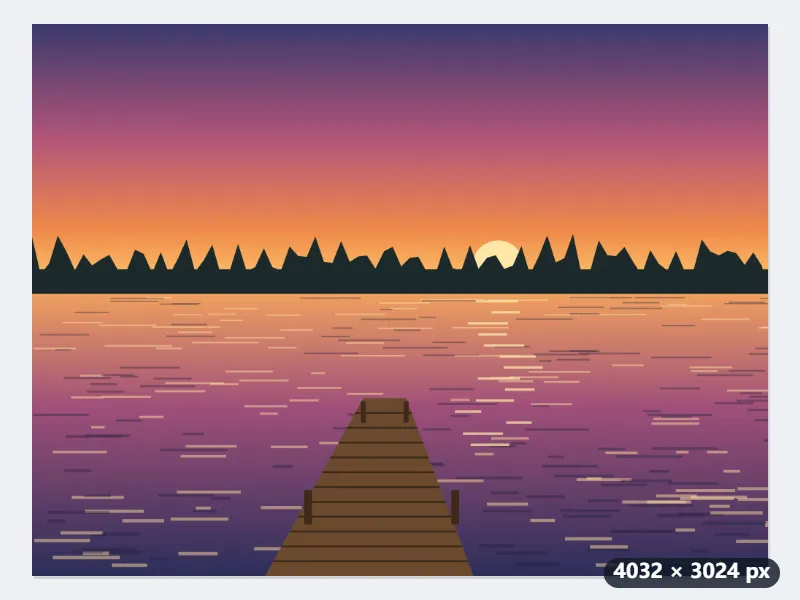
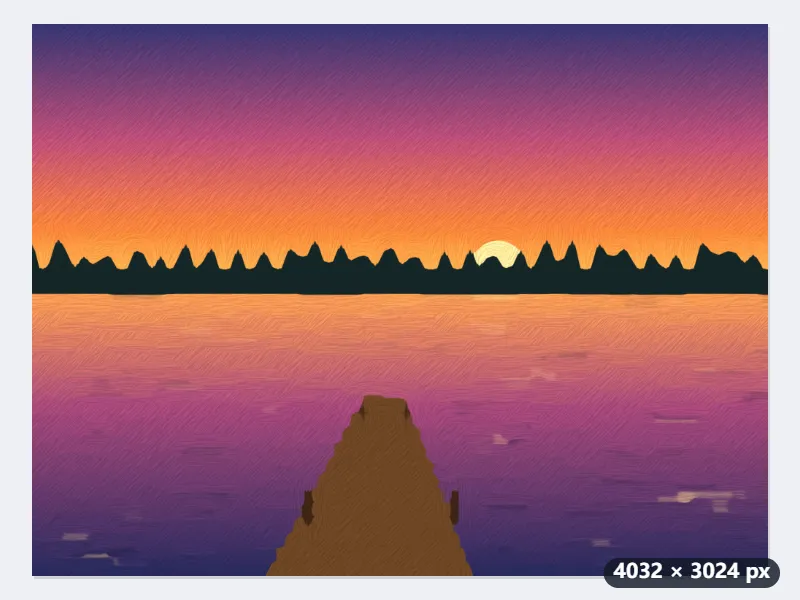
- The paint is laid on a 2000 × 1500 copy (3 megapixels). The large brush is 0.55% of its long side: a radius of 11 pixels there, about 22 pixels of the photo.
- Each point takes the colour of the flattest of eight soft patches around it, so the ripples on the water turn into flat dabs while the tree line against the sky stays a crisp edge.
- Brush strokes about 33 pixels of the copy long (about 66 of the photo) follow the shore and the trees; in the flat sky they run diagonally. They are lit from the top left.
- The painting is enlarged back to 4032 × 3024 with 15% more colour and 5% more contrast, and a canvas weave that repeats every 6 pixels is added at full size.
| Brush | Radius on this photo | Strokes about |
|---|---|---|
| Small (keeps faces and detail) | 8 px | 24 px long |
| Medium | 14 px | 42 px long |
| Large (loose and painterly) | 22 px | 66 px long |
lake-oil-painting.jpg, still 4032 × 3024 pixels: 252 pixels per inch on a 16 × 12 in canvas. The same photo with the same settings gives the same painting every time, so you can make a Medium version too and compare the two side by side.
How it works
- Add one or more photos.
- Choose the brush: small for portraits and fine detail, large for a loose painting. Turn the texture off for smooth paint.
- Select Paint it and download the picture.
Frequently asked questions
- How does the oil painting effect work?
- Each point takes the average colour of the flattest patch around it. Inside a shape that wipes fine detail into flat dabs; at an edge the flat side wins, so the outline stays crisp, the way a painter lays paint up to an edge. Brush strokes are then drawn along the contours and lit from the top left, as if the paint stood up from the canvas.
- Which brush size should I use?
- The brush is measured against the picture, so it looks the same on a small photo and a large one. Small keeps eyes and lettering readable. Large turns a landscape into a loose painting, but in a group photo small faces lose their features.
- How long does it take, and what size is the painting?
- A few seconds for a 12-megapixel photo on a recent computer or phone. The painting keeps the photo’s size, up to 16 megapixels, and a transparent background stays transparent in PNG and WebP.
- Can I see the painting before I use one of my 5 runs?
- Yes. With one photo added, a live preview shows the painting on a smaller copy and updates when you change the brush or the texture. The preview does not count as a run and cannot be downloaded; the full-size painting is made when you select Paint it.
- Does it change the colours of my photo?
- A little, on purpose: the paint gets 15% more colour saturation and 5% more contrast than the photo, since oil paint looks richer than a print. Turning the texture off gives smooth paint without strokes or canvas weave; the dabs and edges stay the same.
- Is my photo uploaded, and what are the free limits?
- No. The painting is made in your browser, so the photo never leaves your device, and there is no watermark. The free plan allows 3 photos of up to 20 MB per run and 5 runs a day; Pro removes these limits.