Add text to an image
Captions and titles that stay readable on busy photos, placed exactly where you want them.
Drop files here
or click to choose from your deviceAccepted: JPG, JPEG, PNG, WEBP, AVIF, GIF, BMP, HEIC, HEIF
One file per runUp to 20 MB per file5 runs per dayRemove limits with Pro✓ Works offline
Your files stay on your device
This tool runs entirely in your browser. Nothing is uploaded, nothing is stored, and you can even turn off your internet connection before you start.
Example
Example: a title and a caption on a beach photo, readable on sky and sand
A 1080 × 1350 px portrait photo, drawn in bands: pale-blue sky at the top, blue sea in the middle, beige sand at the bottom, and a red-and-white striped beach umbrella on the right. A title goes in the sky, a caption on the sand.
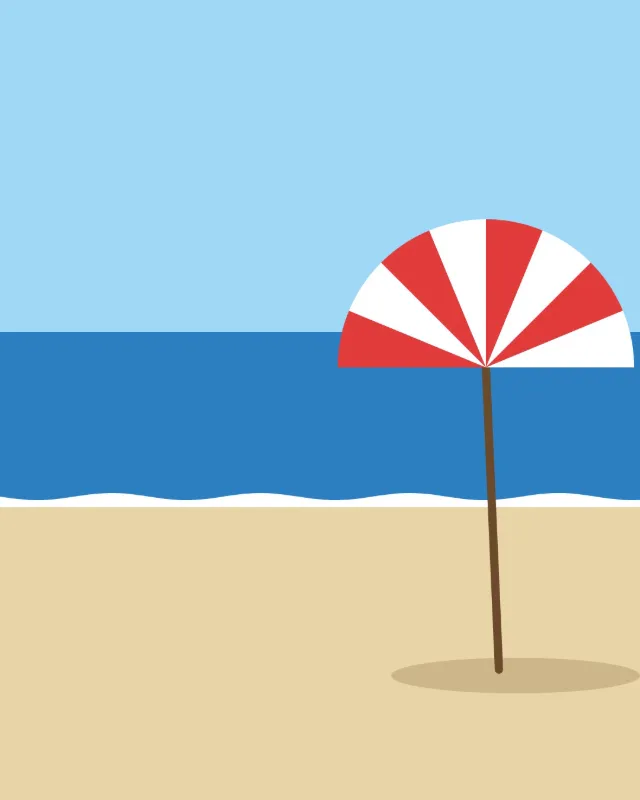
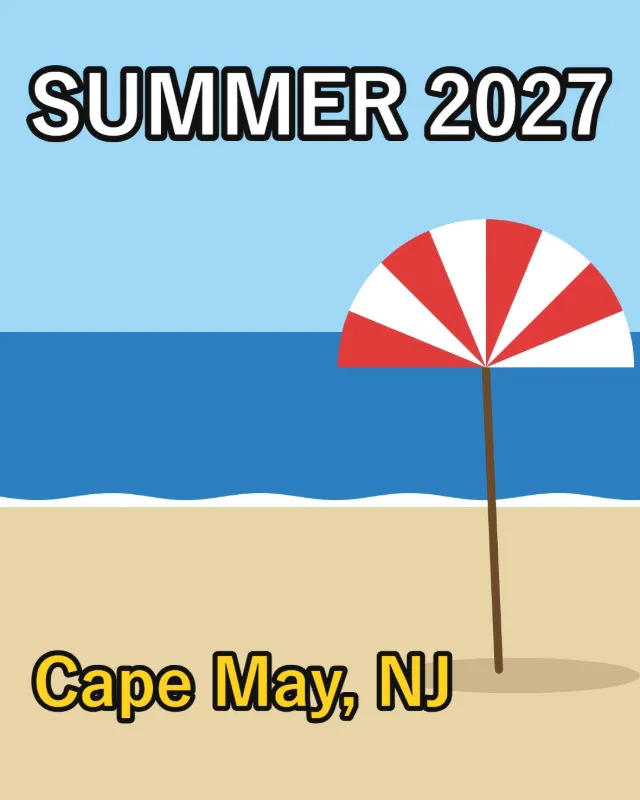
- Press Add text and type SUMMER 2027. The box starts white with a Black outline, Sans-serif, at size 8 %.
- Raise Size to 10 % — a 135 px font on this photo — and drag the box to the top, centred in the sky.
- Press Add text again, type Cape May, NJ, choose Yellow, keep the Black outline and size 5 % (about 68 px), and drag it down onto the sand.
- Press Save image: a 1080 × 1350 px photo in the same format as the original.
The black outline, 16 % of the font size, keeps the white title clear of the pale sky and the yellow caption clear of the beige sand; without it both would fade into the background. The preview and the file are drawn the same way, so what you see is what you download.
How it works
- Drop the image onto the box.
- Press Add text and type your words. Add more text boxes for a title and a caption.
- Drag each text into place and pull a corner to resize it. Choose a colour and a white or black outline so it stands out.
- Press Save image and download the result.
Frequently asked questions
- How do I keep text readable on a busy photo?
- Use an outline: white text with a black outline, or black text with a white one, stays legible on light and dark areas alike. That is the style used on video thumbnails and memes.
- Which fonts are available?
- A bold sans-serif or serif font installed on your device. The preview and the saved image use the same font, so what you see is what you download.
- Can I edit the text after saving?
- No. The text becomes part of the picture. Keep the original image if you might want different wording later.
- How big should the text be?
- Size is a share of the picture’s height, so it looks the same on a small or a large photo: 8 % to start, which is 108 px on a photo 1350 px tall. The slider runs from 2 % to 30 %, and dragging a corner scales the text too.
- Does a transparent PNG stay transparent?
- Yes, saved as PNG or WebP: the text is drawn onto the picture and the clear parts stay clear. Saved as JPG, they turn white, since JPG has no transparency.
- Is my image uploaded?
- No. The text is drawn in your browser. The free plan allows 20 MB per image and 5 runs per day.