Pixelate part of an image
Mark the faces, plates or text to hide and see the result before you save. The picture never leaves your device.
Drop files here
or click to choose from your deviceAccepted: JPG, JPEG, PNG, WEBP, AVIF, GIF, BMP, HEIC, HEIF
Up to 3 files per runUp to 20 MB per file5 runs per dayRemove limits with Pro✓ Works offline
Your files stay on your device
This tool runs entirely in your browser. Nothing is uploaded, nothing is stored, and you can even turn off your internet connection before you start.
Example
Example: hiding the licence plate and house number before selling a car online
Before listing a used car for sale, Sam photographs it in the driveway: car.jpg, a phone photo of 4032 × 3024 pixels. The plate (about 650 × 140 pixels in the photo) and the 27 on the front door should go; the rest should stay sharp.
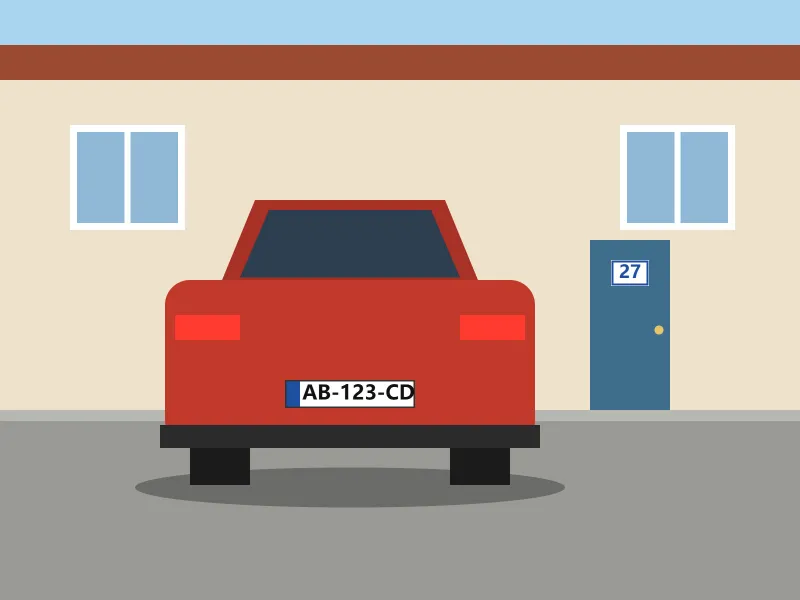
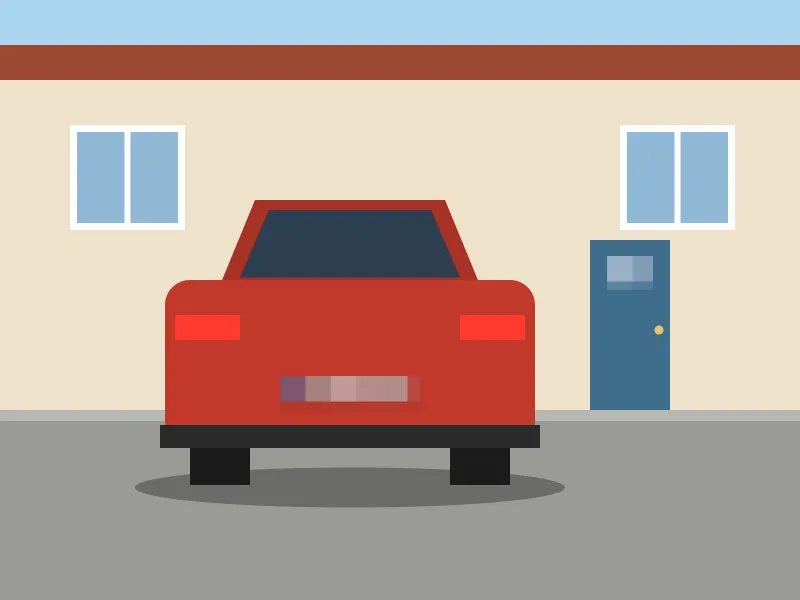
- Drag one box over the plate and a second over the house number. The effect you choose applies to every box marked on the photo.
- Choose Mosaic and strength 8: on this photo the blocks are 129 pixels, so the plate becomes 6 × 2 blocks. The default strength 5 gives 81-pixel blocks, 9 × 2 across the plate.
- For numbers that must not be guessed back at all, choose the solid black box instead: it keeps nothing of what was underneath.
- Press Hide marked areas: car-pixelated.jpg is saved, still 4032 × 3024, without the GPS location the phone wrote into the original.
| Strength | Mosaic block | Plate 650 × 140 px | Blur radius |
|---|---|---|---|
| 1 | 16 px | 41 × 9 blocks | 8 px |
| 3 | 48 px | 14 × 3 blocks | 24 px |
| 5 (default) | 81 px | 9 × 2 blocks | 40 px |
| 8 | 129 px | 6 × 2 blocks | 65 px |
| 10 | 161 px | 5 × 1 blocks | 81 px |
Plate and house number can’t be read, and the listing can go up. The sizes follow the photo’s longer side: a 1600-pixel picture gets 51-pixel blocks at strength 8 and looks the same, 6 × 2 blocks across a plate that fills the same share of the picture.
How it works
- Drop a photo or screenshot onto the box. You can add up to three at a time and mark each one separately.
- Drag across each face, plate or line of text you want to hide. On a phone, tap the spot and adjust the box by its corners.
- Choose mosaic, blur or a solid box and set the strength. The preview shows exactly what the saved image will look like.
- Press Hide marked areas and download the result. The original file on your device is not changed.
Frequently asked questions
- Which effect is safest for text?
- A solid box. Mosaic and blur keep some information about what was underneath, and short text such as numbers can sometimes be guessed back from a weak mosaic. For account numbers, addresses and passwords choose the solid box; mosaic and blur are fine for faces and backgrounds.
- Can it find the faces for me?
- Yes. Press Find faces and every queued photo is searched by a small face detection model (0.23 MB, downloaded once with the runtime that runs it) that runs in your browser. Each face found gets a box you can move or remove; faces in profile or very small ones can be missed, so check the preview.
- Is location data removed too?
- Yes. The saved image is re-encoded from its pixels, so EXIF data such as GPS coordinates and camera details is not carried over. That helps when you share photos taken at home or of children.
- Can the effect be undone after saving?
- No, and that is the point: the saved file only contains the covered pixels. Keep your original if you might need it later.
- Does the strength depend on the size of the photo?
- Only so that it looks the same everywhere: the mosaic block and the blur radius are measured against the photo’s longer side. Strength 5 is a 32-pixel mosaic on a 1600-pixel picture and an 81-pixel one on a 4032-pixel phone photo. On a small area such as a plate, a higher strength leaves fewer, larger blocks.
- Is my picture uploaded?
- No. The effect is drawn on a canvas inside your browser and the image is saved straight to your device. You can switch off your connection after the page has loaded.
- What are the free limits?
- The free plan allows 3 images per run, 20 MB per image and 5 runs per day. Pro removes these limits.