Pixelate faces in a photo
Faces are found for you, and you check the result before anything is saved.
Drop files here
or click to choose from your deviceAccepted: JPG, JPEG, PNG, WEBP, AVIF, GIF, BMP, HEIC, HEIF
Up to 3 files per runUp to 20 MB per file5 runs per dayRemove limits with Pro✓ Works offline
Your files stay on your device
This tool runs entirely in your browser. Nothing is uploaded, nothing is stored, and you can even turn off your internet connection before you start.
Example
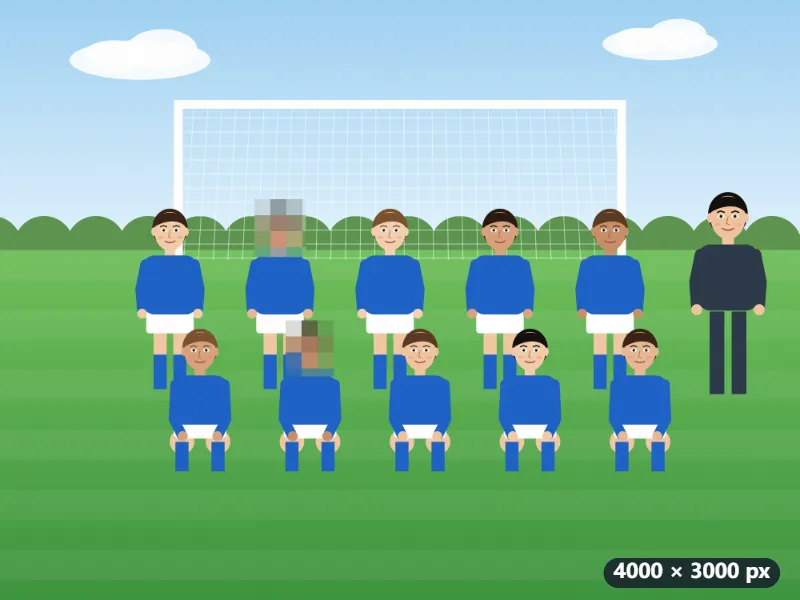
Example: an under-11s team photo with two players whose parents said no to photos
A youth football club wants the under-11s team photo on its website: 4000 × 3000 pixels, ten players in two rows and the coach. Two families have not given photo consent, so those two faces are pixelated and the rest stay visible. Settings: Mosaic (pixelate), strength 5, Keep original format.
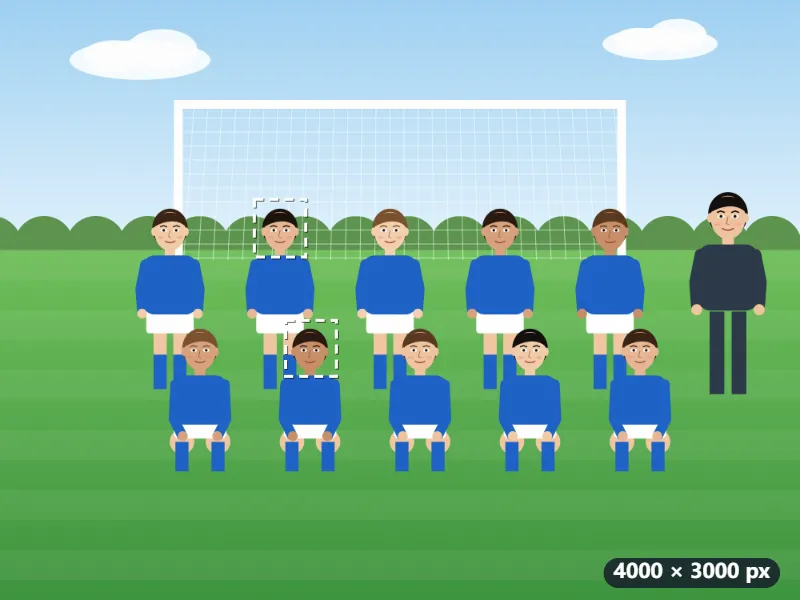
- The photo is searched as soon as it is added: one pass shrunk to 640 pixels, then 12 overlapping tiles of a 1920-pixel copy, so small faces in the back row are not missed. 11 boxes appear.
- Each box is larger than the face the model finds: a 140 × 170 pixel face gets a 252 × 289 box, taking in the hair and a little below the chin.
- Remove the nine boxes of the players who may be shown and keep the two that must be covered. If a face was missed, drag a box over it by hand.
- The blocks are measured on the photo’s longer side: 4000 × 5 ÷ 250 = 80 pixels, so each covered face becomes 4 × 4 squares.
| Strength | Block (4000 px photo) | One face (252 × 289 px) |
|---|---|---|
| 1 | 16 px | 16 × 19 squares |
| 3 | 48 px | 6 × 7 squares |
| 5 (the default) | 80 px | 4 × 4 squares |
| 7 | 112 px | 3 × 3 squares |
| 10 | 160 px | 2 × 2 squares |
team-photo-pixelated.jpg downloads with two faces in mosaic and the others untouched. At strength 1 a face is still more than 300 small squares and can be made out, so look at the preview before you post.
How it works
- Drop one or more photos. Each photo is searched for faces as soon as it is added.
- Every face found gets a box. Drag across any face that was missed, such as one in profile or very small, and remove the boxes you do not need.
- Choose mosaic, blur or a solid box and raise the strength until nobody can be recognised in the preview.
- Press Pixelate and save. With several photos, check each one with the arrows first.
Frequently asked questions
- Will it find every face?
- It finds most faces turned towards the camera, including small ones in group photos, but faces in profile, looking down, hidden by hats or masks, or only a few pixels tall can be missed. Always look through the preview and mark anything it missed before you share the photo.
- Are my photos sent to an AI service?
- No. A small face detection model (0.23 MB, downloaded once with the runtime that runs it) runs in your browser, so photos of children or other people never leave your device.
- Can I leave one person's face visible?
- Yes. Select the box on that face and remove it; only faces that still have a box are covered.
- Mosaic or blur for faces?
- Either works once nobody can be recognised in the preview. A weak mosaic can still give away someone's outline, so keep the strength high; blur looks softer in event and travel photos.
- Why do the boxes cover more than the face?
- The detector’s own box stops at the eyebrows and cheeks. Each box is widened by 0.4 of its width on both sides, to reach the ears, by half its height above, for the hairline, and by a fifth below the chin, so a 140 × 170 pixel face is covered by 252 × 289. Hair and ears give people away too.
- Which strength makes a face unrecognisable?
- The mosaic block is the photo’s longer side × strength ÷ 250. On a 4000-pixel photo, strength 5 makes 80-pixel blocks, so a typical face becomes 4 × 4 squares; strength 1 leaves 16 × 19 small squares, in which a face can still be guessed. Go by the preview: if you can tell who it is, raise the strength.
- What are the free limits?
- The free plan handles 3 photos per run, 20 MB each and 5 runs per day. Pro removes these limits, which helps with a whole event's photos.