Blur faces in photos
Automatic face detection and a natural blur, without the photo leaving your device.
Drop files here
or click to choose from your deviceAccepted: JPG, JPEG, PNG, WEBP, AVIF, GIF, BMP, HEIC, HEIF
Up to 3 files per runUp to 20 MB per file5 runs per dayRemove limits with Pro✓ Works offline
Your files stay on your device
This tool runs entirely in your browser. Nothing is uploaded, nothing is stored, and you can even turn off your internet connection before you start.
Example
Example: a school summer fair photo with three faces blurred and one left clear
At the primary school’s summer fair a parent takes a landscape photo, summer-fair.jpg (4000 × 3000), of four children standing in a row under bunting. Before sharing it with the family, only her own child, in the red T-shirt on the left, should be recognisable. Blur is preselected.
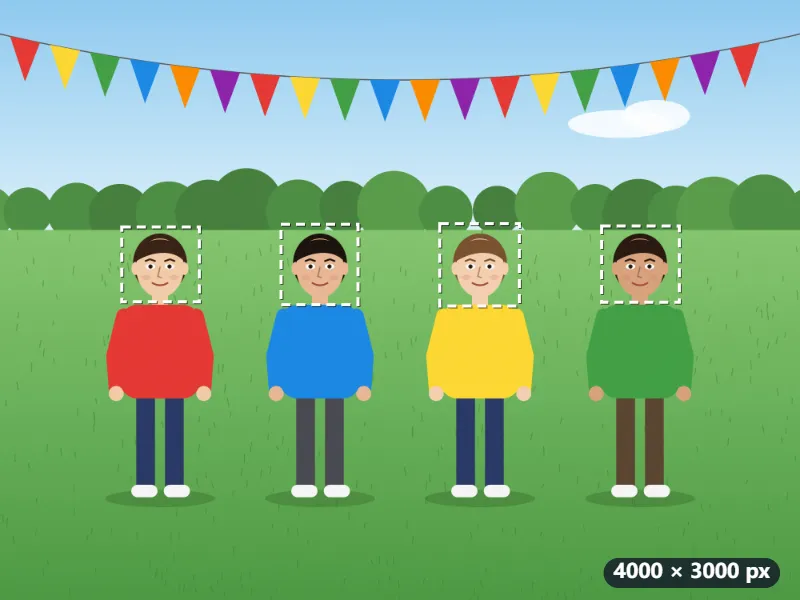
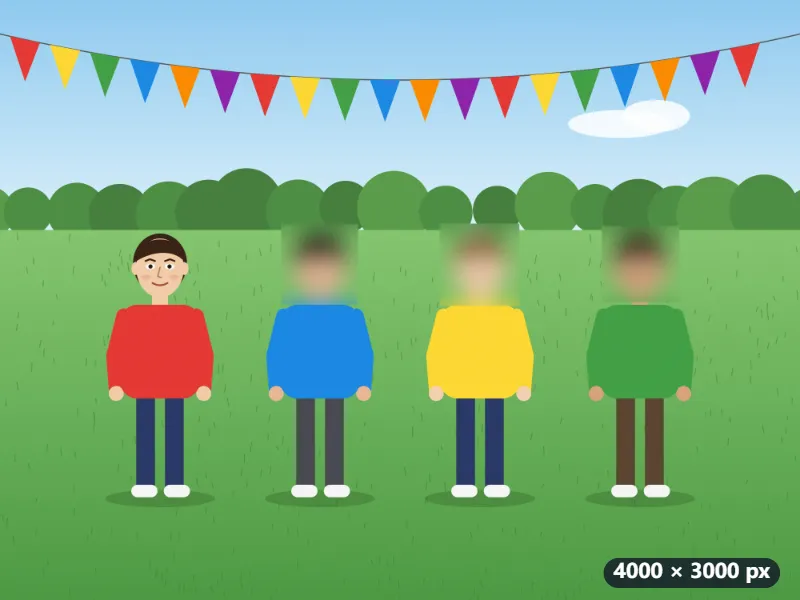
- As soon as the photo is added the faces are looked for, and “Faces found: 4. Check the boxes and mark any that were missed.” appears, with a box on each face.
- The boxes are larger than the faces found, to cover hair and ears too: a face found at 220 × 260 pixels gets a 396 × 442 box.
- Select the box on the child in red and remove it: only the three faces that still have a box are blurred.
- Raise the strength from 5 to 7. The blur radius is the long side × strength ÷ 500: on a 4000-pixel photo, 40 px at 5 and 56 px at 7.
- Press Blur faces and save: summer-fair-blurred.jpg downloads, still 4000 × 3000.
| Strength | Blur radius (4000 × 3000 photo) | Mosaic block (same photo) |
|---|---|---|
| 3 | 24 px | 48 px |
| 5 (default) | 40 px | 80 px |
| 7 | 56 px | 112 px |
| 10 | 80 px | 160 px |
Her child’s face stays sharp and the other three cannot be recognised. A face in profile, under a sun hat or very small can be missed, so look over the whole preview before sending, and drag a box over any face that was not found.
How it works
- Drop the photos. Faces are looked for as soon as each photo is added.
- Check the box on each face. Drag across faces that were missed, and remove the boxes on faces you want to keep.
- Blur is preselected. Raise the strength until the faces are unrecognisable in the preview.
- Press Blur faces and save, and download the photos.
Frequently asked questions
- How accurate is the face detection?
- Faces turned towards the camera are found reliably, including small faces in crowds. Profiles, faces looking down or partly covered, and very small or blurry faces can be missed, so check the preview and mark those by hand.
- Can I keep one face unblurred?
- Yes. Select the box on that face and remove it; only the faces that still have a box are blurred.
- Blur, mosaic or a black box: which hides a face best?
- A solid black box replaces the pixels completely, so nothing of the face is left; use it where it matters most. Blur and mosaic look more natural in a family photo; raise the strength until the face cannot be recognised in the preview. Both are sized on the photo’s longer side.
- Are my photos uploaded?
- No. The face detector is a small model (0.23 MB, plus the runtime that runs it) that is downloaded once and runs in your browser. Nothing is sent to a server, and the saved photo carries no GPS location.
- What are the free limits?
- The free plan handles 3 photos per run, 20 MB each and 5 runs per day. Pro removes these limits.