Color splash effect
One colour kept, everything else black and white.
Drop files here
or click to choose from your deviceAccepted: JPG, JPEG, PNG, WEBP, AVIF, GIF, BMP, HEIC, HEIF
Up to 3 files per runUp to 20 MB per file5 runs per dayRemove limits with Pro✓ Works offline
Your files stay on your device
This tool runs entirely in your browser. Nothing is uploaded, nothing is stored, and you can even turn off your internet connection before you start.
Example
Example: a red umbrella on a rainy street, with the brick wall behind it turned grey
Holly photographed her friend crossing a wet street under a red umbrella: umbrella.jpg, 4032 × 3024 pixels from a phone. Behind them is a reddish-brown brick wall and a passer-by wears a yellow raincoat. She wants only the umbrella in colour, everything else black and white.
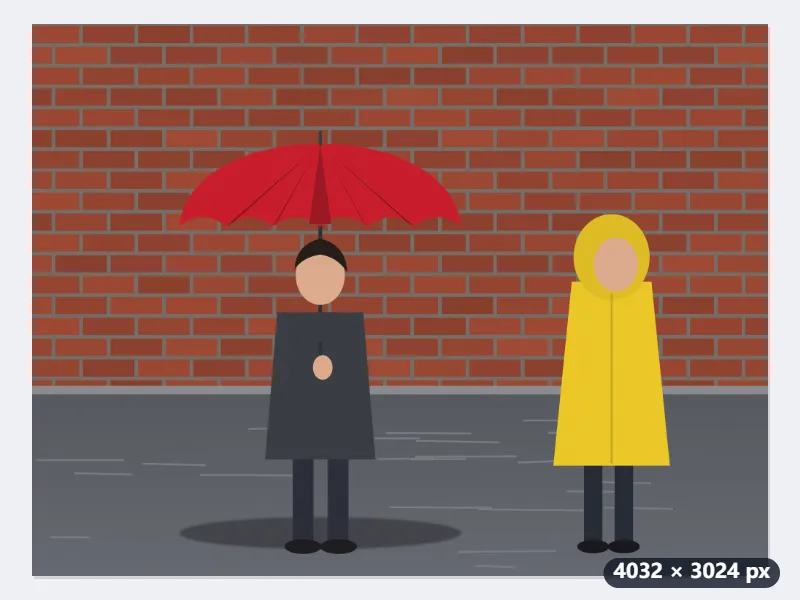
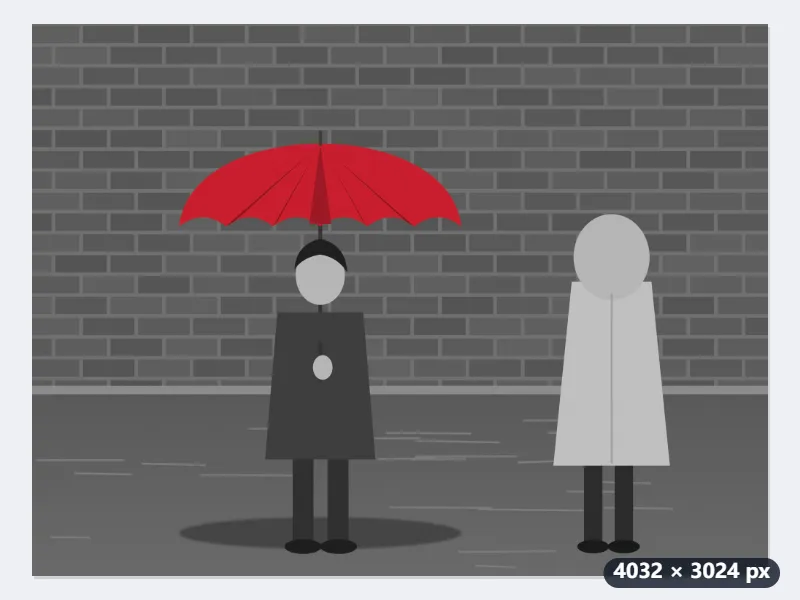
- Add the photo, leave Colour to keep on Red, How close a colour must be on Medium and Save as on The same format, then select Splash the colour.
- Red covers hues around 352°. The umbrella (hue 355°) keeps all its colour, but the brick wall (12°) is close enough to keep 88% of its colour, so it still looks rust-red.
- Run it again with Close (only that colour): the wall drops to 0% and turns a mid grey (92 of 255), while the umbrella, even its dark folds, stays fully red.
- The face (23°) turns grey with Close and Medium; only Loose would keep the skin, the wall and the umbrella all in colour.
| In the photo (R, G, B) | Hue | Kept with Close | Kept with Medium | Kept with Loose |
|---|---|---|---|---|
| Umbrella (200, 30, 45) | 355° | 100% | 100% | 100% |
| Umbrella fold in shadow (130, 20, 30) | 355° | 100% | 100% | 100% |
| Brick wall (150, 70, 50) | 12° | 0% | 88% | 100% |
| Face (220, 170, 140) | 23° | 0% | 0% | 100% |
| Yellow raincoat (235, 200, 40) | 49° | 0% | 0% | 0% |
| Wet pavement (95, 98, 105) | almost no colour | 0% | 0% | 0% |
umbrella-color-splash.jpg downloads at the same 4032 × 3024 pixels: a red umbrella on a black-and-white street, with the wall, the face and the raincoat in grey. Each grey is the pixel’s own brightness (0.299 R + 0.587 G + 0.114 B), so the yellow raincoat becomes a light grey (192) and the wall a mid grey (92).
How it works
- Add one or more photos: a red coat, a yellow taxi, a bunch of flowers.
- Choose the colour to keep, or Pick a colour and set the object’s own shade; choose Loose to keep neighbouring shades too.
- Select Splash the colour and download the picture.
Frequently asked questions
- How does it decide what stays in colour?
- By hue. A pixel close to the chosen hue keeps all its colour, one a little further keeps some, and the rest turn grey, so the border is soft. Pixels with very little colour, such as greys, white and near-black, always turn grey, so stray specks do not light up.
- Will faces stay in colour when I keep red?
- Mostly not. Skin sits between red and orange, so the red range is a little narrower than the others: a red coat or a red bus keeps its colour while faces turn grey. Orange does catch skin. If a face still keeps a tint, choose Close.
- Why is my whole picture grey?
- Either the photo has nothing in the chosen colour, or the colour you picked with Pick a colour is a grey, white or black, which has no hue to keep. Pick a colour with some colour in it, ideally the object’s own shade.
- Does it keep the size and transparency?
- Yes. The picture keeps the photo’s size (up to 16 megapixels), and a transparent background stays transparent in PNG and WebP. A JPG puts transparent areas on white.
- Can I keep two colours, say red and yellow?
- Not in one run: the tool keeps one range of hues. Running the result again with Yellow does not help either, because the yellow is already grey and the second run turns the red grey too. For two neighbouring colours, such as red and orange, choose Loose, or Pick a colour with a shade between them.
- Can I choose which object stays in colour?
- No, there is no brush: every part of the picture with that hue keeps its colour, wherever it is. If something else in the shot shares the colour, as a brick wall can share an umbrella’s red, choose Close, or crop the photo first so that part is not in it.
- Is my photo uploaded, and what are the free limits?
- No. The effect is made in your browser, so the photo never leaves your device, and there is no watermark. The free plan allows 3 photos of up to 20 MB per run and 5 runs a day; Pro removes these limits.