Colour picker from an image
Click the picture for a colour code; get its main colours as a palette.
Drop files here
or click to choose from your deviceAccepted: JPG, JPEG, PNG, WEBP, AVIF, GIF, BMP, HEIC, HEIF
One file per runUp to 20 MB per file5 runs per dayRemove limits with Pro✓ Works offline
Your files stay on your device
This tool runs entirely in your browser. Nothing is uploaded, nothing is stored, and you can even turn off your internet connection before you start.
Example
Example: the colours of a two-colour logo on white
A PNG logo: a navy block and an orange bar on a white background. Clicking each part gives its code; Find main colours then lists the colours with the share of the picture each covers.
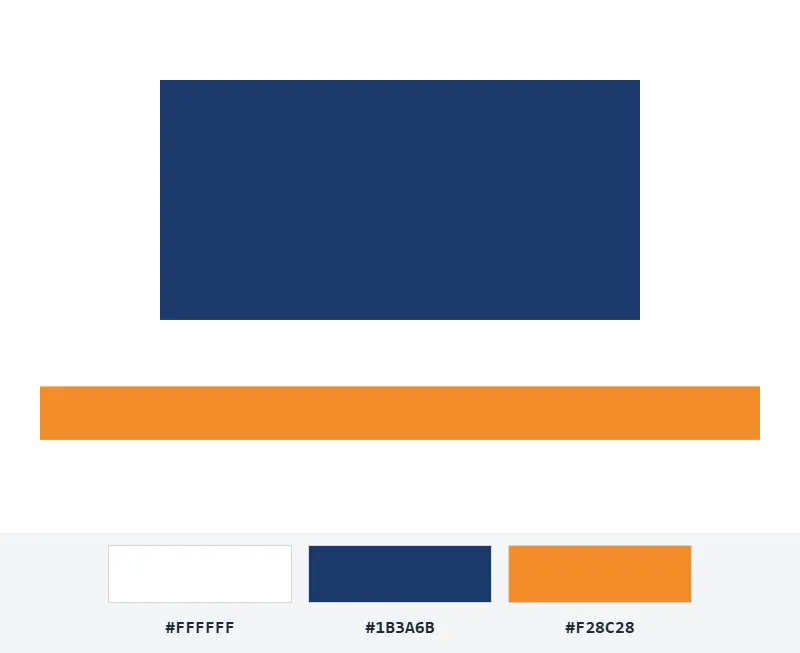
- Click the navy block: #1B3A6B, rgb(27, 58, 107). Click the orange bar: #F28C28, rgb(242, 140, 40).
- Choose 5 main colours and select Find main colours.
- Copy the list, or download it with the palette picture.
| Colour | HEX | RGB | Share |
|---|---|---|---|
| White | #FFFFFF | rgb(255, 255, 255) | 64% |
| Navy | #1B3A6B | rgb(27, 58, 107) | 27% |
| Orange | #F28C28 | rgb(242, 140, 40) | 9% |
The list has three colours, not five: a flat logo only has three, so that is all the clustering finds. A photo, with its many shades, usually fills every place you ask for.
How it works
- Drop a picture onto the box. It appears below, ready to click.
- Click anywhere on the picture: the colour there is added to the list with its HEX and RGB codes. Click a code to copy it.
- To get the picture’s main colours, choose how many and select Find main colours.
- Copy the list, or download it with a palette picture showing each colour and its share.
Frequently asked questions
- How exact is the colour I click?
- It is the colour of the single pixel under the pointer, read from the picture itself. On a photo, neighbouring pixels differ slightly; click a few times across an area if you want to see the range.
- How are the main colours found?
- The pixels are grouped into the number of colours you chose by k-means clustering, and each colour is the average of its group, listed with the share of the picture it covers. Transparent areas are left out.
- Why does the code differ from the one in my design file?
- JPG compression and colour profiles shift colours slightly. For an exact brand colour, pick from a PNG export or check the design file itself.
- How do I get the HEX code of a colour in a picture?
- Click the spot on the picture: the colour there is listed with its HEX code (such as #1B3A6B) and its RGB values. Click a code to copy it.
- Why did I get fewer main colours than I asked for?
- The picture has fewer distinct colours than that. A logo in navy and orange on white gives three, even with 5 or 8 chosen; each colour is listed with its share of the picture.
- Is my picture uploaded?
- No. The picture is drawn into a canvas on this page and read back from there. The free plan allows 5 runs of Find main colours a day; picking by clicking is not counted.