Add a date stamp to photos
The orange '98 9 19 in the corner, from the date each photo was taken.
Drop files here
or click to choose from your deviceAccepted: JPG, JPEG, PNG, WEBP, AVIF, GIF, BMP, HEIC, HEIF
Up to 3 files per runUp to 20 MB per file5 runs per dayRemove limits with Pro✓ Works offline
Your files stay on your device
This tool runs entirely in your browser. Nothing is uploaded, nothing is stored, and you can even turn off your internet connection before you start.
Example
The orange film date on two birthday-cake photos, one sent through a chat app
Two 4000 × 3000 photos of a birthday cake with three lit candles on a table: cake.jpg, taken on a phone on July 12, 2026, and cake-sent.jpg, the same photo after it went through a messaging app, which dropped the date it was taken. Settings: Film camera, Orange (film), Bottom right, Medium.
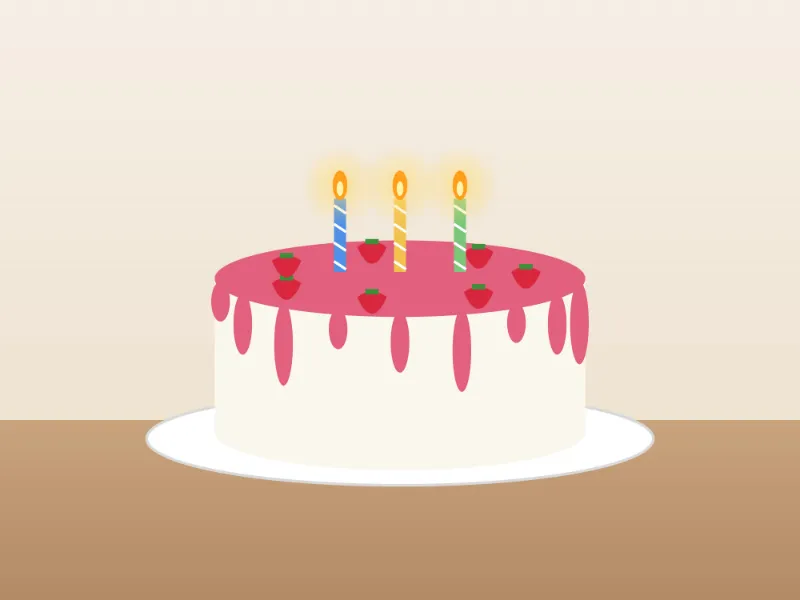
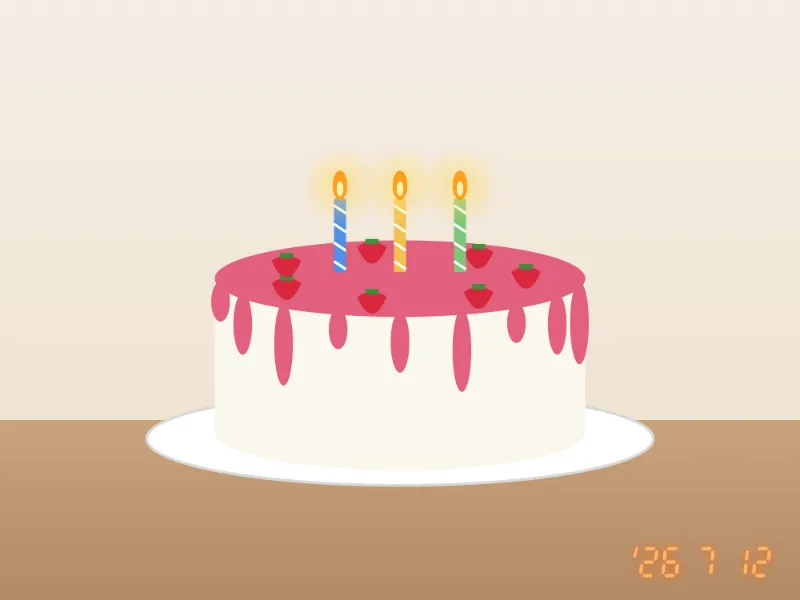
- With the date box empty, cake.jpg gets the date the phone saved in it: '26 7 12, the year in two digits after an apostrophe, then the month and the day, the way a film camera printed it.
- At Medium the digits are 4.5 % of the shorter side: 135 pixels tall on a 3000-pixel side, 122 pixels in from the bottom and right edges.
- cake-sent.jpg would get the file’s date, the day it arrived. Type 7/12/2026, which this page reads month first as July 12, and run that photo on its own: a typed date goes on every photo in the run.
| Typed in the date box | Read as | Printed |
|---|---|---|
| (empty) | the date each photo was taken | '26 7 12 on cake.jpg |
| 7/12/2026 | July 12, 2026 | '26 7 12 |
| 07-12-26 | July 12, 2026 | '26 7 12 |
| 2026-07-12 | July 12, 2026 | '26 7 12 |
| 12/7/2026 | December 7, 2026 | '26 12 7 |
| 13/7/2026 | July 13, 2026, as there is no 13th month | '26 7 13 |
cake-dated.jpg and cake-sent-dated.jpg: the whole photos at their full size, with '26 7 12 in glowing orange digits in the bottom right corner. The copies carry no EXIF data, so keep the originals.
How it works
- Drop one or more photos onto the box: JPG, HEIC from an iPhone, PNG or WebP.
- Choose the style — the film camera date is the classic orange digits — and the colour, corner and size.
- Leave the date empty to print the date each photo was taken, or type one to print on all of them.
- Select Add date and download the photos.
Frequently asked questions
- Where does the date come from?
- From the photo itself: cameras and phones write the date and time a picture was taken into it (EXIF). When a photo has none — screenshots, pictures saved from a chat app — the date the file was last changed is used, and you can always type a date to print instead.
- Why is the date different from when I took the picture?
- The photo was probably sent through an app that removes the shooting date, so the file date was used. Type the right date in the date box, as 2026/9/19.
- Does the stamped photo keep its location and camera information?
- No. The photo is drawn again with the date on it, and that copy carries no EXIF at all — no location, no camera details. Keep the original if you need them.
- Which date formats can I type?
- Month first, as dates are written in the US: 7/12/2026, 7-12-26 and 7.12.2026 are all July 12. Year first works too, as 2026/7/12 or 2026-07-12. A first number above 12 can only be a day, so 13/7/2026 is July 13. A date in words works too, as July 12, 2026 or 12 July 2026; a day the month does not have, such as 2/30/2026, is refused.
- Can I stamp the time as well as the date?
- No. The stamp is the date only, as on a film camera; none of the styles prints the time.
- Is my photo uploaded, and what are the free limits?
- It is not uploaded: the picture is changed in your browser. The free plan allows 3 pictures of up to 20 MB per run and 5 runs a day. Pro removes these limits.